
I have a Zivver account
User manuals and reference documentation
Check whether a securely sent message has been read
For messages sent via the Zivver DLP Gateway, you can check in the Zivver WebApp whether they have been opened.
First, follow the steps below to log in to the Zivver WebApp:
- Go to the WebApp.
- Enter your email address.
- Enter your password.
- Enter the second-factor authentication.
 TipDon’t want to enter the second-factor authentication every time? Select the option Trust this device and skip the extra login step the next time I sign in.
 Note
NoteYou may be able to log in using your workplace credentials. After entering your email address, you will be redirected to your organization’s login page.
You are now logged in to the Zivver WebApp and ready to read and send secure messages.
For every sent message, you can view a read receipt. This allows you to see who has read your message and who has not. You can find the read receipt at the bottom left of your sent message.
The icon has four variants:
- A closed envelope means that none of the recipients have opened the message.
- A black open envelope means that one or more recipients have opened the message, but not all recipients have opened it yet.
- A green open envelope means that all recipients have opened the message.
- An orange envelope with an exclamation mark means that the message was not delivered to one or more recipients. Click the icon to see which recipients did not receive the message.
Click the button to see who has read the message and who has not.
In the image below, you can see all the icons you may encounter in a sent Zivver message in the Zivver WebApp.
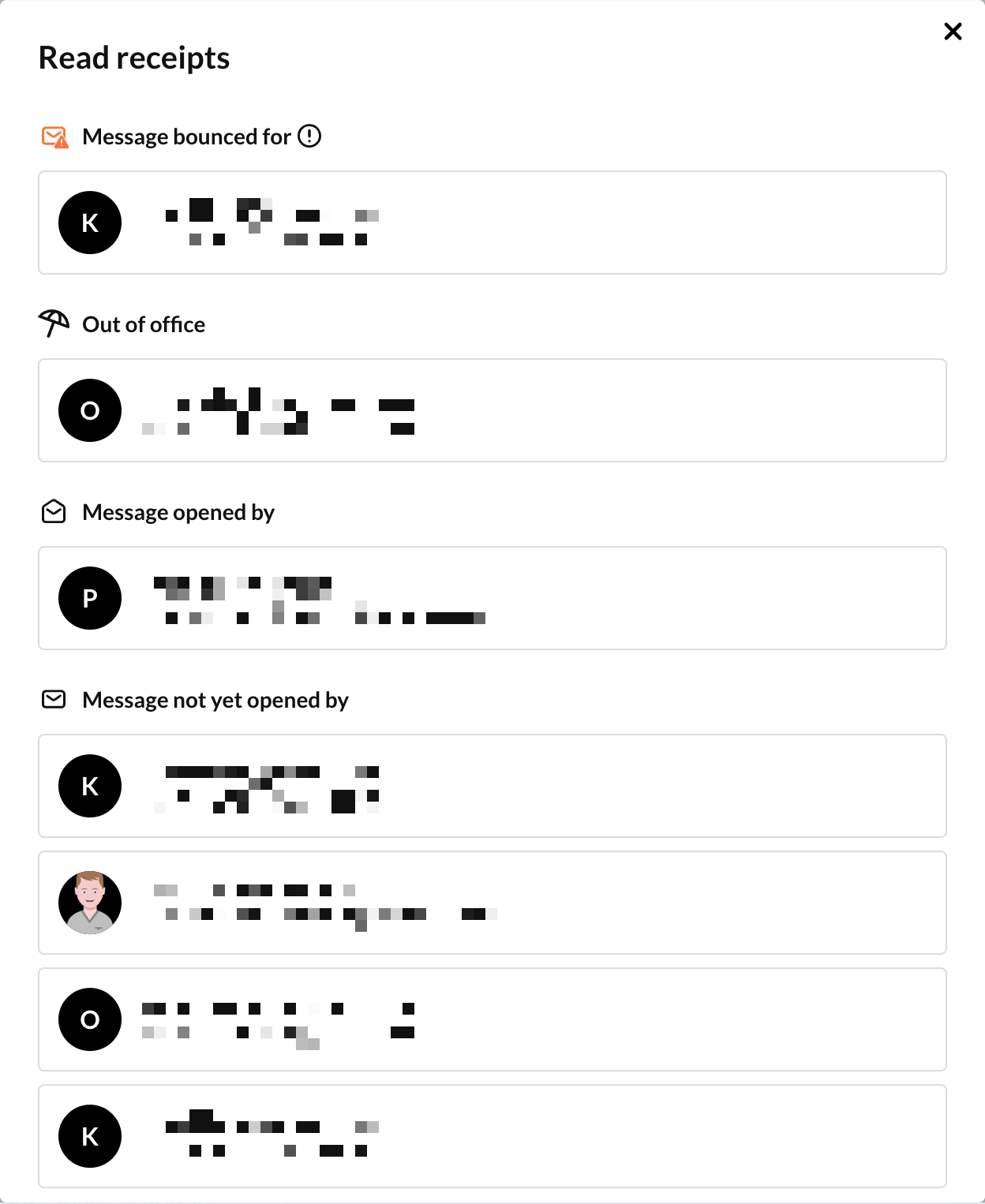
The details of the read receipt may contain the following sections:
 Message bounced for
  : This section lists the recipients for whom the message bounced. The reason for the bounce is sent to you in the email notification you receive when a message bounces. If you want to know the reason for the bounce, check your email notifications.
If this section is not present, the message was delivered to all recipients. Out of office: This section lists the recipients who have an out-of-office message set up. If you want to know the content of the out-of-office message, check your email notifications.
If this section is not present, none of the recipients have an out-of-office message set up. Message opened by: This section lists the recipients who have opened the message.
 Message not yet opened by: This section lists the recipients who have not yet opened the message.