
Zivver Outlook Web Access Add-in
Send and manage secure messages with the Zivver Outlook Web Access add-in.
Why does my message end up in Drafts instead of being sent?
Applies to: OWA New Outlook
You click Send, the message disappears from view, and later you find it unsent in your Drafts folder. Zivver has not lost your message and sending is not broken. Your message is safe.
Cause
After you click Send, Zivver performs a mandatory security scan of the content before the message leaves your mailbox. This usually takes a few seconds, but it can take longer for larger messages.
If you do something else in Outlook during this scan, for example opening another email, minimizing the window, or clicking elsewhere, the send is interrupted. Outlook then moves the message to your Drafts folder.
Solution
- After you click Send, stay on the message until it leaves the compose window.
- If the message is already in your Drafts folder, open it and click Send again.
The message is not lost and is sent as usual.
Prevent it from happening again
Compose in a separate window
When you compose in a separate window instead of in the reading pane, switching to another email in Outlook does not interrupt the send. The message then does not end up in your Drafts folder while Zivver is still processing it.
New Outlook
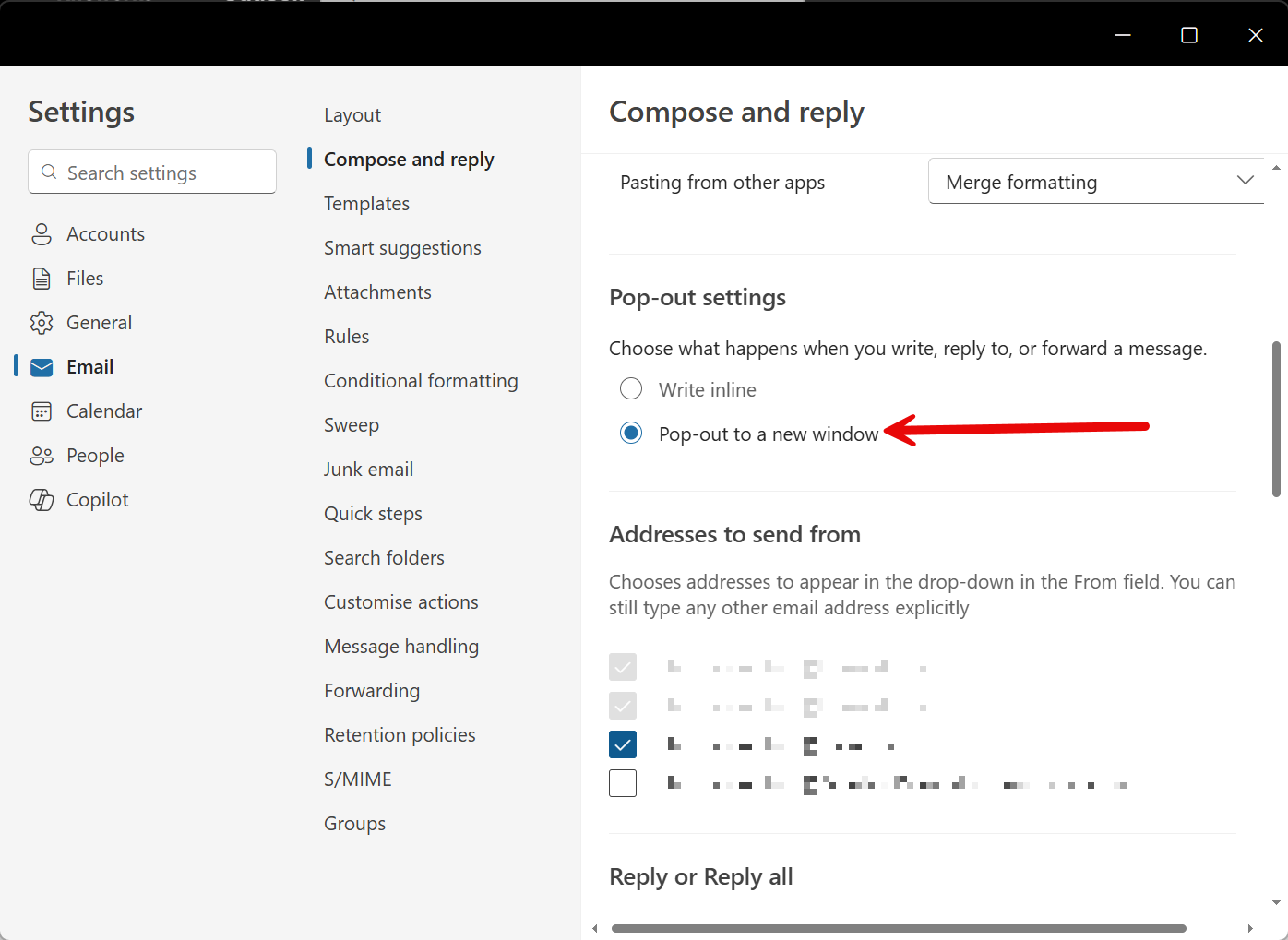
In the new Outlook, you can enable the setting Pop-out to new window. Then new messages, replies, and forwards always open in a new window.
- In the new Outlook, click File.
- Click settings Settings.
- Click mail Email.
- Click Compose and reply.
- Scroll down to the section Pop-out settings.
- Select the option Pop-out to new window.
 Info
InfoOutlook on the web
In Outlook on the web, you cannot set this up as a default. You can open each message in a new window yourself:
- Open a new message, reply, or forward.
- In the top right of the message, click the
 pop-out icon.
The message opens in a new window.
InfoSkip the scan for frequent recipients
If you often send messages to the same internal recipients, ask your Zivver administrator to add their domains to the Exempted Domains. When all recipients of a message belong to exempted domains, Zivver skips the scan when you click Send, so there is no delay in which the send can be interrupted.
For more information, see Exempt domains from scanning during sending.
Use the latest version of the add-in
The Zivver OWA add-in v7 sends messages faster than earlier versions. For more information, see the release notes of v7.